I have found that the probe kit that I had ordered from SeeedStudio with my BusPirate last year wasn't as useful as I had hoped. The quality of the the probe connectors wasn't great and having 10 probes in a bunch when all you need is 4 can be cumbersome. I can't complain – the probe kit was only $5.
I needed to check out a I2C temperature/humidity sensor with the BusPirate on a breadboard. So hacked this connector comprising a short length of 10 wire ribbon cable, a 5x2 IDE IDC connector to mate with the BusPirate IO header at one end and an IC socket at the other end.
The IC socket can then be plugged into the breadboard. I don't expect this connector to last forever, but it's certainly neater and easier to use than the probe kit.
I took this photo of a HTC Desire AMOLED display a while ago with a USB microscope. It has insufficient resolution to see the individual sub pixels clearly. But by adding a drop of water onto the display glass, the subpixels come into clear view.
Which got me thinking: what if I put a drop of water onto the camera window: would the camera become a microcope?
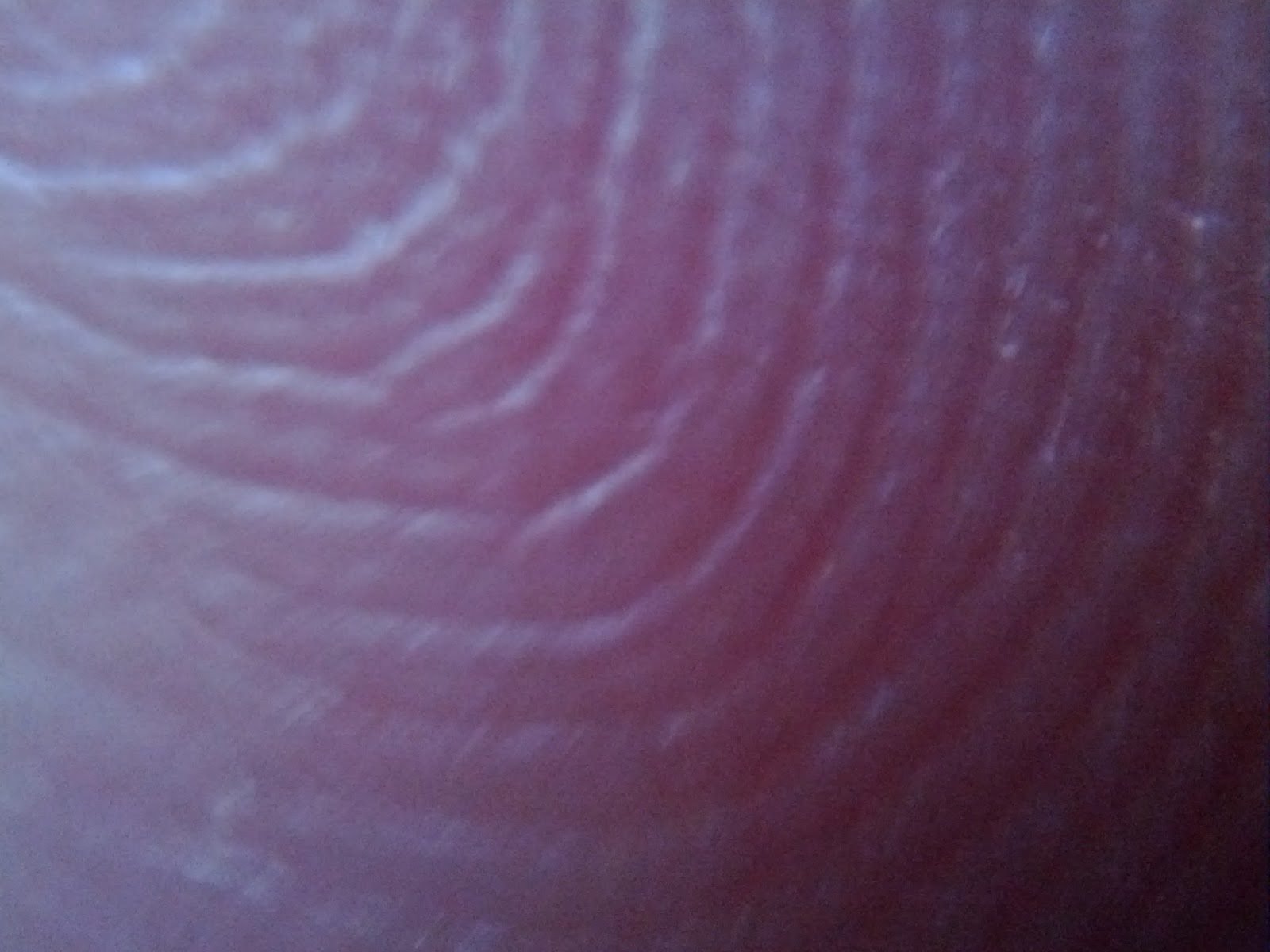
And indeed it does. The quality isn't great, but you can certainly see things that are not visible with the naked eye.
The trick is to ensure that the drop is small enough so that the entire surface is curved. A large drop will have a mostly flat surface and will not act as a lens. Objects will come into focus at a very short distance from the water drop lens – about 5mm.
Using the front facing camera on some of the newer camera models (eg the Galaxy Nexus) has the benefit that you can easily illuminate the subject while viewing the display. The normal camera can be trickier to get good photos because the camera blocks the light needed for a good exposure. The flash doesn't work very well because the subject is so close to the lens. If the subject matter is semi-transparent (eg a leaf) you can try back lighting it. When finished dry and clean the camera window with a soft cloth.
Here are some photos I took (some with the Galaxy Nexus, some with Galaxy Tab).
A microscopic photo of a HTC Magic LCD display through the water drop.
Holly leaf back lit with a desk lamp.
The pins of a TQFP IC package. The width of the pin is 0.22mm.
A holly leaf back lit by a desk lamp.
Finger tip.
Leaf, back lit by a desk lamp. Cropped and some sharpening applied.
PCB vias.
If you have any suggestions on how to improve the quality of the images or would like to share some of your microscope images, please leave a comment at the end of this post. More photos from this online album.
Updates:
27 Nov 2011: It occurred to me that oil has a higher refractive index than water (1.47 for vegetable oil vs 1.33 for water) which might result in better magnification. I'll try it at some point, but it will certainly be messier to clean up.
There seems no end in sight to the roaming ripoff in Europe. While the situation is improving slowly it's still ridiculous.
At the moment I'm on holiday in the Canary Islands (part of Spain). Before travelling I checked with my operator (Vodafone IE) re data roaming packages. The best they could do is €12 per day for 50MB after which €1 is charged per additional MB (down from €5/MB a few years ago!). I need about 100MB per day so that's €12 for the first 50MB and €50 for the next 50MB: a total of €62 per day, or €620 for a 10 day trip! Added to this is the complication that between myself and the wife we have 6 WiFi devices (2 x laptops, 2 x smartphones, a Kindle and an Android tablet). Our hotel WiFi is locked to a single device, is expensive, slow (128kbps?!), and is only accessible in certain areas (not our rooms).
I found a nice solution. I purchased a pay-as-you-go SIM from a local Vodafone shop (a €9 once off charge and you'll need photo ID to make that purchase). I then applied a data top-up to that SIM: €15 for 1GB lasting one week or €20 for 1GB lasting up to a month. I inserted the SIM into my Samsung Galaxy Tab 10.1v and started the portable hotspot mode (under Settings -> Wireless & networking -> Tethering and portable hotspot -> Portable WiFi Hotspot). Bingo: a portable WiFi hotspot good for up to 5 devices.
The Galaxy Tab's battery life is sufficient that I can carry the tablet in my day bag and have enough power to keep all our devices continuously connected no matter where we were. The Galaxy Tab has security disabled by default: I'd strongly recommend enabling security to prevent others nearby gaining unauthorized access to precious bandwidth (the mobile network here is good... it won't take long to download a full 1GB).
There are still a few problems (which I'm sure there are good solutions out there): Android 3.0 (Honeycomb) installed on the Galaxy Tab 10.1v (aka GT-P7100) seems to have no ability to report current or historical bandwidth use. I believe this has been addressed in Android 4.0 which I eagerly look forward to. Also I haven't figured out how to get remaining data credit on my SIM. And finally Windows 7: in the first few minutes after connecting it seems to go through megabytes per minute: presumably software updaters phoning home, Facebook, GMail brower windows fetching updates etc. It seems to settle down to a reasonable rate after a minute when about 5MB is consumed.
Here is a short weather radar animation I made of a 24 hour period last week (24 October 2011) when the east coast of Ireland (Dublin city in particular) was deluged with an exceptionally heavy rain storm.
I made this video clip starting with a directory of individual radar images in PNG format and then used the mencoder tool (part of mplayer) to generate a MP4 video clip from the frames.
Despite the Roman Empire’s sanitation, medicine, education, wine, public order, irrigation, roads, fresh-water system, and public health: they never had a decent digital clock. Well here it is!
The following video shows the clock in action. The clock is speeded up by over x100 so you can see a full 12 hours in just a minute or two.
The project uses only components that were available in the 1970s, 74 series chips, LEDs and resistors and a 50Hz or 60Hz clock signal.
There is plenty of support in the 74 series logic chips for driving 7 segment displays and Nixie tubes. But it seems nobody ever thought about developing a roman numeral driver chip! (I wonder why :)
I’ve broken this project into several segments and will describe each in turn:
Derive a pulse per second from clock source (divide by 50 or 60)
Count 60 seconds to obtain minutes
Count minutes and display in roman numberals (0 to 59)
Count hours and display in roman numerals (1 to 12)
For the display I opted to make the roman numeral letters using LEDs out on a breadboard: crude but adequate to illustrate the logic in action. If there was no limit to my time or budget I would have liked to have crafted something more elaborate. Neon tubes would have been fantastic but way beyond my budget.
Decoding roman numerals
Before describing each segment, a little background on roman numerals. Here are numbers 1 - 60 laid out in a table.
On close inspection it can be seen it’s rather systematic. The important observations are this: we are only dealing with digits 0 - 59 and and the 0 - 9 of the 10s digit can be substituted for (blank),”X”,”XX”,”XXX”,”XL” and “L” respectfully, and the 0 - 9 of the units digit can be substituted for (blank),”I”,”II”,”III”,”IV”,”V”,”VI”,”VII”,”VIII”,”IX” respectfully.
For the units display I'm going to use 7 display elements which I'll call I3, X0, V0, I2, I1, I0. For the 10s display I will use 4 display elements: X3, X2, X1 and L0.
An important aid in decoding roman numberals is to be able to count in ‘decades’. For this reason I chose the 74390 decade/bi-quintary counter. So lets look at the truth table for the numbers 0 - 9 with the 74390 in bi-quintinary mode. Shown here is the Qn pins on the counter and the desired state of the display.
Q0
Q3
Q2
Q1
I3
X0
V0
I2
I1
I0
0
0
0
0
0
0
0
0
0
0
0
1
0
0
0
1
0
0
0
0
1
1
2
0
0
1
0
0
0
0
0
1
1
3
0
0
1
1
0
0
0
1
1
1
4
0
1
0
0
1
0
1
0
0
0
5
1
0
0
0
0
0
1
0
0
0
6
1
0
0
1
0
0
1
0
0
1
7
1
0
1
0
0
0
1
0
1
1
8
1
0
1
1
0
0
1
1
1
1
9
1
1
0
0
1
1
0
0
0
0
By visual inspection the following rules for driving the display can be deduced:
I0 = Q1 OR Q2
I1 = Q2
I2 = Q1 AND Q2
V0 = Q0 XOR Q3
X0 = Q0 AND Q3
I3 = Q3
And now the 10s display. The task is simplified because we're only interested in counting up to 59.
Q0
Q3
Q2
Q1
X3
X2
X1
L0
0
0
0
0
0
0
0
0
0
1
0
0
0
1
0
0
1
0
2
0
0
1
0
0
1
1
0
3
0
0
1
1
1
1
1
0
4
0
1
0
0
0
0
1
1
5
1
0
0
0
0
0
0
1
L0 = Q3 OR Q0
X1 = Q1 OR Q2 OR Q3
X2 = Q2
X3 = Q1 AND Q2
Dividing 50Hz to get one pulse per second
For this project I'm using a timing signal derived from the mains frequency (although for prototyping I've been using an Arduino which allows me to experiment with various frequencies). In Europe and many other parts of the world this is 50Hz. To get one pulse per second this signal will need to be divided by 50. This is easy with the 74390: either divide by 5 and then by 10, or vice versa. All else being equal I think it's a good idea to reduce the working frequency as soon as possible, therefore I opted to divide by 10 first, and then by 5.
Decade counter 1 (on the left) divides the incoming 50Hz signal by 10 bring the frequency down to 5Hz, and then decade counter 2 (on right) then divides it by 5 bring it to 1Hz.
You say tomato, I say tomato...
In the US the mains frequency is 60Hz which complicates things a little. Thankfully it's not difficult to fix. Connecting 2Q0 AND 2Q1 will cause decade counter 2 (on right) to reset at 6, thereby dividing the incoming frequency by 60.
Dividing seconds by 60 to get one pulse per minute
This is identical to the US mains 60Hz problem described in the previous section. I use a 74390 and tie the MR (reset) of decade counter 2 to 2Q0 AND 2Q1. The Q0 pin forms the input to the minutes counter.
The Minutes Counter and Display Decoder
This purpose of this segment is to count minutes from 0 to 59 and then roll over to 0. It also decodes the counter output pins (1Q0 to 3 and 2Q0 to 3) to drive a roman numeral display. Decade counter 1 (on left) counts minutes and decade counter 2 (on right) counts the 10s of minutes. The roll over at 60 is accomplished by feeding 2Q1 AND 2Q0 (ie 6 on the 10s counter) to the counter reset.
The Hours Counter and Display Decoder
The hours count from 1 - 12 which is a problem: the 74390 has no preset capability: it's always all 0s on reset. So how to get the clock to roll over to value 1? This took a bit of thinking and I (eventually) came up with a solution that involved two D flip-flops (7474) in series.
The first D flip flop delays the falling edge of 2Q1 by one clock cycle and the second flip flop delays it by a further cycle. By ANDing Q bar of the first flip flop with Q of the second flip flop I get a pulse which is delayed by one clock cycle. I then OR that to the input of the hours counter and it creates an second short pulse whenever the clock rolls over.. causing the clock to start at a count of 1.
Photos
Conclusion
This is really just a proof-of-concept which was prototyped using a breadboard. However the electronics checks out and could form the basis a more permanent project. I had some ideas on ways of (safely) tapping into the mains 50/60Hz signal to get a high precision clocks signal. Modern power utility networks control the frequency to a very high degree of accuracy (if averaged over 24 hours) and is as good as typical quartz crystal solution. Unfortunately I've run out of time. I might follow this up in a separate post later if there is interest.
Also I ran out of time on the clock setting function, which is a pity, because it's important :) This was going to be implemented by feeding the pulse-per-minute output from the seconds counter together with the output of a microswitch to a XOR gate and then forwarding the output of the XOR gate to the minutes counter. This would allow the user to manually advance the minutes with each key button press (there may be need to debounce the switch). Ditto for the hours counter. An alternative approach is use a microswitch to feed the 50Hz clock signal to the seconds stage, advancing the clock at high speed while the switch is depressed.
The bill of material:
4 x 74390
4 x 7408 (AND gates)
2 x 7486 (XOR gates)
3 x 7432 (OR gates)
1 x 7484 (D flipflops )
LEDs (lots, about 70 + limiting resistors)
50Hz (or 60Hz) signal generator (using Arduino for prototype)
5V power supply (using Arduino 5V power supply)
The Arduino sketch to generate the 50Hz signal is:
void setup() {
  pinMode(13, OUTPUT);
}
void loop() {
  digitalWrite(13, HIGH);   // set the LED on
  delay(10);
  digitalWrite(13, LOW);    // set the LED off
  delay(10);
}
Summary: this post explains to send remote AT commands to an XBee module using ZigBee commands. The end point, profile ID, cluster ID and command and response format is documented. This is useful if you need to control a XBee's IO lines from a non-XBee device.
The Digi XBee Series 2 module.
The Digi XBee module is a popular RF module featuring a UART and several IO lines that can be configured as input/output or in some cases ADC or PWM. The "Series 2" version of these modules can be flashed with ZigBee compatible firmware. The modules then participate in a ZigBee mesh network.
The modules are configured and controlled by AT commands (like the modems of old) which are issued through the module's UART by a computer or microcontroller. There are two varieties of the firmware: AT mode and API mode. The latter provides access to more advanced features of the module.
One feature of the API mode is the ability to send AT commands to remote XBee modules. This can be used to control relays, read the state of switches, read temperature etc. This in theory allows many small control applications to be accomplished with nothing more than a XBee module on it's own -- no need for an attached microcontroller.
There is a problem however. All the examples and documentation I've seen to date (I may very well have missed something, but not for the lack of trying) only cover controlling a XBee module through the XBee API. So if your interface to the ZigBee network is not a XBee (or equivalent Digi product) you're out of luck. In my case I have a Texas Instruments CC2530 based USB dongle and I require that software running on a computer control the state of a remote XBee's IO lines.
So, reverse engineering time! I wrote scripts to control the XBee digital IO lines from another XBee, and simultaneously ran a 802.15.4 packet sniffer. This is what I learned:
For remote AT commands the sending XBee issues a ZigBee command to the remote XBee on endpoint 230 (0xE6), with profile 0xC105 (Digi private profile), cluster 0x0021. The command is formatted as follows:
frame-id: one byte API frame ID used in many XBee API calls
sender-ieee-addr: the 64 bit IEEE address (8 bytes, the most significant byte first)
atcmd0: the ASCII code of first character of the AT command (eg 0x4d or 'M' if command is ATMY)
atcmd1: the ASCII code of the second char of the AT command (eg ...)
params: zero, one or more optional parameter bytes
For example: to send ATMY (get 16 bit network address) the command will be:
0x00, 0x32, 0x00, 0x0f, 0x00, 0x13, 0xa2, 0x00, 0x40, 0x3c, 0x15, 0x5c, 0x00, 0x00, 0x4d, 0x59
The bytes with values 0x00 and 0x32 may have some significance, but I have no idea what it might be. I'm not sure if the sender IEEE address is important. It seems to work the same no mater what address I use.
Responses are sent on cluster 0x00a1. In response to the ATMY command I get:
0x0f, 0x4d, 0x59, 0x00, 0xd1, 0xed
So that seems to be:
frame-id, atcmd0, atcmd1, 0x00, atresponse...
The XBee digital IO lines are configured with the ATDn commands, where 'n' is the number of the IO line. The lines can be configured as input, output low, output high, analog and PWM (not all lines are capable of all the functions). The two functions that are of interest to me are output high (parameter value 5) and output low (parameter value 4).
Note: there is potential for some confusion encoding AT commands. Take for example the command ATD04. What this means is AT command D0 with parameter 4. The digit 0 in the command part is encoded as the ASCII code ie 0x30, but the digit in the parameter part (4) is the byte value 0x04. So the command and parameters is encoded as 0x44, 0x30, 0x04.
Other clusters in endpoint 230 have other functions, which I'll document in another post.
Update (2 Oct 2011): Small edit. I omitted the frame-id in the format of the AT command response.
In response to a chart I posted earlier this week on the Irish national electricity grid wind production, I got a few queries which would suggest that people are not familiar with that electricity demand looks like. So here are a few charts which will hopefully provide some insight. I’m not an expert on this topic, so I’m not going to say much other than present some pretty charts.
First this is what demand looks like throughout the day. There are differences between summer and winter demand. Being a country where air chilling is rarely needed, a significant proportion of power is consumed by heating, but very little by cooling. So as expected average use during summer is less than winter. Night use is way lower than day use (no surprise there). In winter however, between 17:00 and 19:00 there is peak. This is presumably due to people coming home from work and switching on heating. This peak is a problem as it often stretches the Irish grid to its limits during the winter.
The following chart is a typical week. There is a clear difference between weekday and weekend use levels.
As mentioned earlier summer demand is lower than winter. Right in the middle of winter is the Christmas and New Year holidays which disrupt the usual patterns.
Over 10 years one can see a steady increase in electricity demand up to the recession in 2008. Wind generation really started to take off in 2005.
Here is the same 10 years of data displayed in oscilloscope style (one week per frame).
I believe there was a time where individual events were clearly visible in the demand charts. For example in the 1960s the RTÉ (the national broadcaster) could estimate the 'Late Late Show' viewing figures from spikes during ad breaks (tea, kettles...) [can't find any refs for this]. Nowadays there is so much power being consumed that it's very rare to see any individual event in the data. I did spot one exception which I assume had something to do with the events in the US on 11 Sep 2001. But how exactly that translated into a significant spike at about 12:00 the next day, I don't know.
The data is provided by EirGrid (the state-owned electric power transmission operator in the Republic of Ireland). The system demand definition is stated as “production required to meet national electricity consumption, including system losses, but net of generators' requirements. It includes power imported via the interconnector and an estimate of the power produced by wind generators, but excludes some non-centrally monitored generation (i.e. small scale CHP).”
I accidentally blew the JTAG fuse on a MSP430 MCU recently. Unlike PICs this is an irreversible operation. The onboard firmware does not have a bootloader, so the only way to upgrade the device is to replace the MSP430 chip.
I considered using hot air, but the chip is very close to a CC2520 radio chip (QFN package) and a PIR sensor, neither of which I want to expose to much heat. While researching alternative techniques I stumbled across Chip Quik. At €15 (available from Mouser and Farnell/Element14) I figured it was worth giving it a try.
Basically this is low melting point solder. It takes long enough to solidify that you have enough time to wet all the pins and push or lift the chip.
The kit comes with about 1m of this special solder wire, a tube of flux and alcohol wipes to remove the flux residue. The procedure is simple: apply flux to the pins. Then apply this solder. Run the soldering iron around all sides and just push or lift off the chip.
This is a video I recorded from my USB microscope of my very first practice run. The board is a controller from an old 3.5in floppy drive.
It works as advertised! I was surprised at how easy the chip lifted off. The next step which I didn't show is to clean off the pads with soldering wick. Then use the supplied alcohol wipes to clean the flux residue from the PCB (and the chip if you need it again).
What is this alloy? What is its melting point? The packaging made no mention of this. Being the curious type I got my Steinel heat gun and started at 150°C expecting to be working up the temperature scale. Instant liquid! 120... still liquid... 100 ... 80 ... 60 .. and finally at the 50°C it solidified. Wow... that's not much higher than the melting point of butter! Doing a bit of googling I found a page on their site which has some details: it's a bismuth, tin, lead and indium alloy with a melting point of 60°C (139°F).
Conclusion: if you need to remove a chip without disturbing neighboring components, this seems like great product to use.
My gym uses bar code fobs which keep breaking. So I made my own. Unlike RFID fobs it's trivial to make your own. Here is how I did it:
Get the code
Identify the bar code type (the "symbology").
Use a web app to make a bar code
Print, cut and attach to your key ring
The code is usually printed under the bar code. If not, you can use a smartphone mobile app such as ZXing to scan the code. ZXing will also tell you what symbology is used. (Obviously if the fob is broken like mine, you'll need to hold the pieces together as best you can before scanning).
The bar code "symbology" is how the code is encoded into bars. You might get away with using the wrong symbology, depending on how the bar code scanner is configured. If you scanned with a app like ZXing it will tell you what the symbology is. If not, try making bar codes with all the different symbologies until you find a code which is visually identical to your broken fob.
Making the bar code
There are many free web pages and apps to make and print bar codes, but many produce output pages what are cluttered with unnecessary stuff. So I wrote my own little mini-app: http://barcodekeyfob.appspot.com/ based on the Barcode Coders library.
When you've got the right code, print and cut out and attach to your key ring. I'm using the reverse side of my Tesco fob. Do not cut the bar code too tightly: bar codes require white space (the "quiet zone") to the left and right of the code.
An improvised bar code key fob
It's not going to last forever, but heck, it can't be any worse than the ones the gym supply. In any case I printed a few spares so that I can quickly replace it. Of course it doesn't have to be a tiny fob. I'm thinking of printing an A5 sized version of the bar code, laminating it and attaching it to my gym bag.
Summary: This article explains how to interface the Texas Instruments TMP006 non-contact IR temperature sensor evaluation module (TMP006EVM) to a Linux computer using the Bus Pirate from Dangerous Prototypes. A small Java program has been written which queries the TMP006 registers using the Bus Pirate, calculates the object temperature and outputs to the screen. Some basic theory of operation is explained and a temperature vs time charts from a cooling mug of coffee and the sky at sunset is presented.
Texas Instruments (TI) recently announced the TMP006, infrared thermopile temperature sensor – ideal for non-contact temperature measurements in the range -40°C to +125°C. The sensor costs just $1.50 in quantity. As with most TI parts, an evaluation kit (TMP006EVM) is available, but at the significantly higher price of $50.
The evaluation kit comprises two hardware components:
a TMP006 sensor mounted on a PCB module with a 10 pin header for I2C lines and power
a SM-USB-DIG: a general purpose USB to I2C/SPI interface which TI use for other evaluation modules also.
The kit also comes with a USB memory stick with the evaluation software, plastic protective case/cover for the SM-USB-DIG and TMP006 module, a USB extension cable, and 30cm ribbon cable suitable for separating the SM-USB-DIG and TMP006 module.
The supplied software is based on National Instruments LabView and is Windows only. As one would expect from TI, it's easy to install (although it's over 100MB in size!), looks good and works well.
But I use Linux.
My first idea was to write a Linux driver for the SM-USB-DIG. This sub-project has advanced quite a bit, and thanks to a helpful post by a TI employee the protocol has been decoded.... but it isn't returning reliable data just yet.
To expedite matters, I have set the SM-USB-DIG aside for the moment, and turned to the handy Bus Pirate instead.
The TMP006 communicates with the world using I2C/SMBus. Four pins from the TMP006EVM module header (H1) need to be connected:
H1 Pin 1: I2C SCL connects to the Bus Pirate CLK
H1 pin 3: I2C SDA connects to the Bus Pirate MOSI
H1 pin 6: Vcc (3.3V) connects to the Bus Pirate 3.3V
H1 pin 8: Gnd connects to the Bus Pirate GND.
The TMP006 has 5 registers which can be queried or written to through the I2C bus:
Register 0x00: 16 bit signed voltage output from the thermopile (read only)
Register 0x01: 14 bit die temperature sensor (read only)
Register 0x02: configuration (read/write)
Register 0xFE: manufacturer ID (read only, always 0x5449)
Register 0xFF: device ID (read only, always 0x0060)
The object temperature is a function of the die temperature and the thermopile voltage output. It's not a simple function – some math is involved which is documented in the TMP006 Users Guide, page 10.
To test, connect to the Bus Pirate, enter I2C mode, select 100kHz speed (although slower speeds will be fine too), apply power to the 3.3V line ('W' command) and enter the following command:
[0x80 0xFE [0x81 r r]
All going well the following response should be received:
I2C> [0x80 0xfe [0x81 r r]
I2C START BIT
WRITE: 0x80 ACK
WRITE: 0xFE ACK
I2C START BIT
WRITE: 0x81 ACK
READ: 0x54
READ: ACK 0x49
NACK
I2C STOP BIT
I2C>
This command will read register 0xFE (the manufacturer code) and should return 0x5449.
The normal Bus Pirate interface is written with human interaction through a terminal emulator in mind. Which is great for debugging stuff, but not so handy if a computer program is to be controlling the Bus Pirate. Fortunately, for direct computer control, a binary mode is also available.
I wrote this Java program which uses the Bus Pirate's binary I2C mode to continuously query the TMP006 die temperature and thermopile voltage registers and calculate the temperature of the object in front of the sensor. The RXTX Java IO library is required (available as the librxtx-java package in Ubuntu). [I can re-write this for Python or C. Leave a comment at the end of the post if you're interested in seeing this implemented in another language].
Compiling and running the Java program:
javac TMP006.java
java TMP006 /dev/ttyUSB4 > tmp006.dat
Replace /dev/ttyUSB4 with what ever device the Bus Pirate is connected to. If all goes well you should see the data that looks like this in tmp006.dat (use tail -f tmp006.datto view the log file in real time.
This gnuplot command will generate a nice chart from the data:
plot 'tmp006.dat' using 1:5 title 'Tobj (C)', \
'tmp006.dat' using 1:4 title 'Tdie (C)'
Theory of operation
Every object emits a characteristic electromagnetic radiation called "black body radiation". The spectrum depends (among other things) on the object's temperature. This is the phenomenon that causes 'red hot' objects to glow a dull red and 'white hot' objects to glow bright yellow/white. Objects at human temperatures also glow, but in the far infrared part of the spectrum which is not visible to the human eye.
The above chart shows the black body radiation spectrum for melting ice (blue), human skin temperature (red) and a typical mug of coffee (green). The spectrum curves are derived using Plank's Law. Also shown is the TMP006's area of sensitivity (4µm to 8µm [1][2]) and the location of the visible part of the electromagnetic spectrum.
The TMP006 measures the intensity of IR radiation in the 4µm to 8µm region of the spectrum using the Seebeck effect. The measuring circuit built into the the chip/sensor converts the intensity of incident radiation into a voltage which is reported back to the application. Using this voltage, and the temperature of the sensor itself a good estimate of the temperature in front of the sensor can be calculated. The necessary equations are detailed in the TMP006 Users Guide, page 10.
Two things to note. The sensors field of view is a solid angle extending 30 degrees from the normal. Beyond that the sensitivity falls off sharply. Also it is assumed that the emissivity of the target object is reasonably high (> 0.7). Objects such as wood, skin, water and generally anything that's not very white or shiny has a high emissivity and can be measured this way. To get a good reading on shiny metal surfaces that have very low emissivities, it's recommended to cover the area being measured with black tape or paint a patch with black paint.
Some results
This is a chart of the measured temperature of a mug of coffee left cooling. There is approx one temperature sample taken every second. As one would expect, this is a classic Newtons Law of Cooling curve.
This next chart is a temperature vs time chart of the sensor looking up at a cloudless sky (a rare day in the west of Ireland!). I was a little surprised by the results: I expected to see colder temperatures. My other IR thermometers report temperatures well below 0°C when pointing at the sky (away from the sun). Some buildings were in the sensor's field of view which might explain the higher than expected temperatures.
Conclusion
The TMP006 looks like a useful sensor. Looking at TI's promotional material for it, it would seem that they have the mobile devices market in mind. Being able make an instant temperature measurement would certainly be a useful feature for high end smart phones. Also it has a digital interface removing the need for analog signal conditioning and ADC, thus simplifying design and reducing component count.
The volume price of just $1.50 seems very reasonable. Unfortunately the tiny 1.6mm square WCSP (Wafer level Chip Scale Package) and the stringent PCB layout guidelines [3] make this device difficult to use unless you have access to a advanced surface mount soldering workshop. Hopefully this sensor will be available on a breakout board in the near future.